

“I have 421 listings right now, who has time for that?”
That’s how one seller felt about changing shipping on every listing. Many sellers hit the same wall.
Business policies fix most of this. You set your shipping, returns and payment once. Then you reuse them on every listing.
This guide shows you how eBay business policies work. You’ll learn how to create and name them, how to change handling time, and how to switch hundreds of listings at once.
eBay business policies are saved settings for shipping, returns and payment. Create them under Account → Business policies. When you edit a policy, every listing using it updates automatically. To move many listings to a different policy, use Seller Hub’s bulk edit or a Seller Hub Reports upload.
What eBay business policies are (shipping, return and payment)
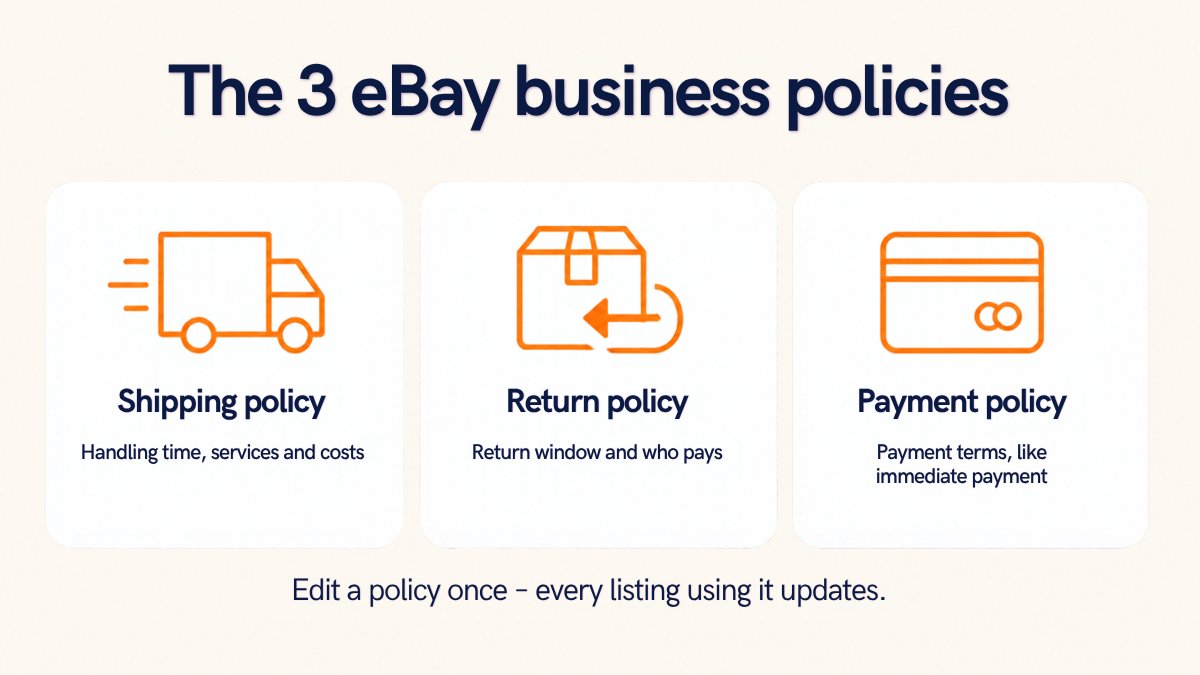
A business policy is a saved set of terms. You attach it to a listing instead of typing the same details again.
There are three types:
| Policy | What it holds |
|---|---|
| Shipping policy | Handling time, shipping services and costs, international shipping, excluded locations |
| Return policy | Whether you accept returns, the return window, who pays return shipping |
| Payment policy | Payment terms, such as requiring immediate payment |
The big benefit: edit a policy once, and every listing that uses it updates. eBay’s help page says this happens automatically.
Each eBay site has its own policies. A policy made on eBay.com can’t be used on eBay.co.uk or eBay.ca.
One recent change: since July 20, 2026, business policies no longer apply to listings in the Vehicles category. Vehicle sellers now add these details on each listing.
How to create each policy on eBay, step by step
First, check you’re opted in. Go to Account → Business policies in My eBay. If you see an opt-in link, select it.
When you opt in, eBay creates starter policies from your recent listings. You can edit them later.
To create a new policy:
- Open the Business policies page in your account.
- Select Create policy, then choose shipping, return or payment.
- Give it a clear name and a short description.
- Fill in the details, such as services, costs or return window.
- Select Save.
Repeat this for each type you need. Most stores need only a few of each.
How to name your policies so you can manage them later
Good names save you hours later. You’ll pick these names in drop-downs, in the eBay app and in spreadsheets.
The eBay app shows only your 26 most-used policies of each type. A clear name makes the right one easy to find.
Use a simple naming pattern:
| Policy type | Pattern | Example |
|---|---|---|
| Shipping | Service · handling time · who pays | USPS Ground Advantage · 1 day · Free |
| Return | Window · who pays | 30 days · Free returns |
| Payment | Rule | Immediate payment |
Three more tips:
- Keep names short. Spreadsheet uploads accept up to 50 characters for a policy name.
- Type names exactly the same every time. In uploads, names must match exactly, including capital letters.
- Delete what you don’t use. The Business policies page has a “Delete inactive policies” option.
How to change handling time across your whole store
Handling time is the number of business days you need to ship after payment. It lives in your shipping policy.
eBay lets you choose same day, 1, 2, 3, 4, 5, 10, 15, 20 or 30 business days.
To change it for many listings at once:
- Open the shipping policy your listings use.
- Change the handling time.
- Save. Every listing using that policy updates.
If you offer same-day handling, set your cut-off times. Go to Account → Shipping preferences and edit your same-day handling cut-off.
Why faster handling pays off: Top Rated Sellers can earn the Top Rated Plus seal on listings. Those listings need same or 1-business-day handling and free returns of 30 days or longer. Qualifying listings get 10% off final value fees.
How to switch hundreds of listings to a new policy at once
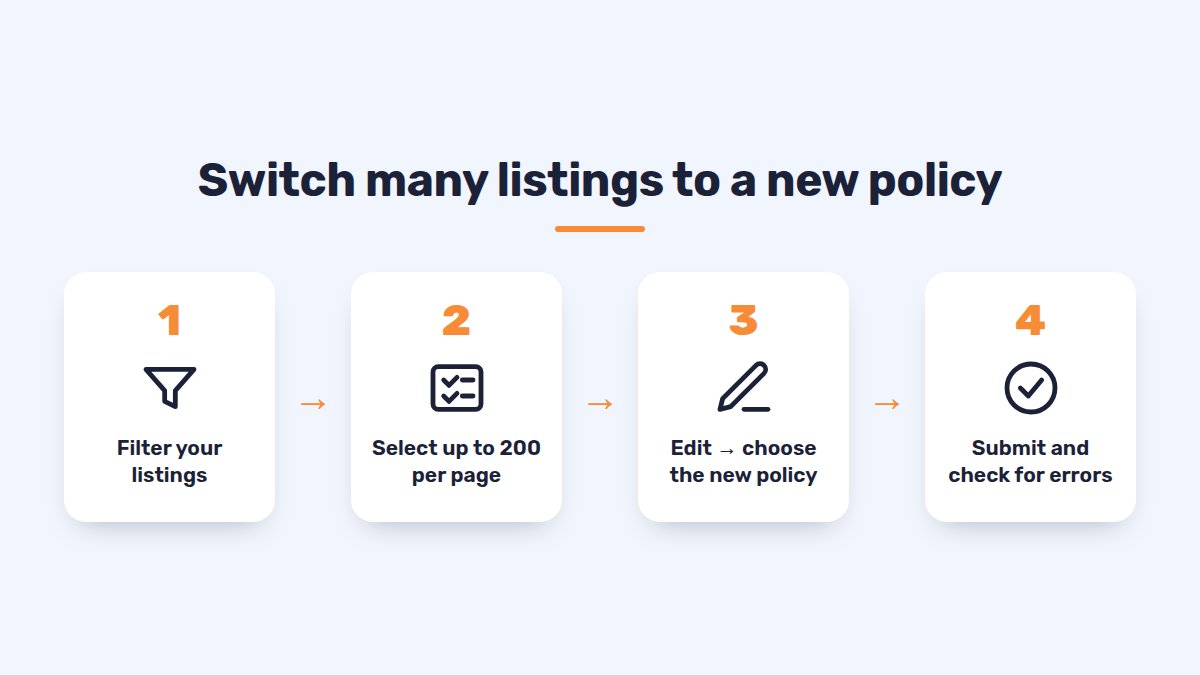
Editing a policy changes every listing that uses it. But sometimes you need to move listings to a different policy. For example, heavy items might need a new shipping policy.
Option 1: Seller Hub bulk edit.
- Go to Seller Hub → Listings → Active.
- Filter the listings you want to change, for example by category.
- Set items per page to 200, then tick the listings.
- Select Edit, then change the shipping, return or payment policy.
- Submit, and repeat for the next page.
eBay’s newer Bulk Listing Tool can handle up to 2,000 listings at a time. It’s being rolled out, so you may not see it yet.
Option 2: A Seller Hub Reports upload. Download your active listings, then fill these columns for each item:
- Shipping profile name
- Return profile name
- Payment profile name
Upload the file in Seller Hub Reports. Check the results file for any failed rows.
When bulk edit keeps failing: sellers with thousands of listings often report this. One seller wrote:
“I have more than 2,600 listings and try to change the handling time, but the bulk edit tool doesn’t work.”
You still create your policies on eBay. In SellSetGo, you filter listings by category, price or quantity and select them all. Then you apply a shipping, return or payment policy in one step. The change goes to eBay in seconds, even across thousands of listings.
Common business policy mistakes (and how to avoid them)
- Editing a policy you share by accident. Changing a policy changes every listing using it. Check how many listings use it first.
- Ignoring “Copy of…” policies. Some listings can’t be updated right away. Examples are listings with a pending sale or Best Offer, or ending within 12 hours. eBay keeps their old terms in a copied policy. Reassign those listings later.
- Shipping costs that won’t change. If you changed shipping cost on a single listing, that listing keeps its own cost. Policy changes won’t override it.
- Deleting a policy that’s in use. eBay won’t let you. Move the listings to another policy first.
- Mixing old and new columns in uploads. If you use policy names in a spreadsheet, remove the old shipping and return columns. Using both causes errors.
- Too many near-identical policies. Ten versions of “Free shipping” make mistakes likely. Merge them and delete the rest.
FAQ
Do I have to use eBay business policies?+
Most sellers already use them. If your account isn’t opted in, you can opt in from the Business policies page in your account.
Does changing a policy update my active listings?+
Yes. When you edit a policy, every listing using it is updated automatically. A few listings, such as those with pending offers, may keep the old terms in a copied policy.
How many business policies can I have?+
eBay doesn’t publish a strict limit. Keep it small, so you always pick the right one.
What’s the best handling time on eBay?+
Same day or 1 business day, if you can ship that fast every time. It can help you earn Top Rated Plus and a 10% fee discount.
Can I use my eBay.com policies on eBay UK or eBay Canada?+
No. Each eBay site needs its own policies.
Conclusion
Business policies turn hours of listing edits into a few clicks.
Create a small set of clearly named policies. Edit a policy to update every listing that uses it. Use bulk edit or a Reports upload when listings need a different policy.
Managing thousands of listings?
SellSetGo lets you apply shipping, return and payment policies to thousands of eBay listings in one step, and bulk edit the rest of your listings too.
Start your 15-day free trialBook a free demo