
How to Bulk Edit and Optimize eBay Item Specifics with SellSetGo’s Item Specs Optimizer Tool
Item specifics are one of the most important ranking factors on eBay. Missing or inconsistent item specifics can reduce visibility, hurt conversions, and even prevent your listings from appearing in filtered search results.
With SellSetGo’s Item Specs Optimizer, you can bulk edit and optimize item specifics across hundreds or thousands of listings — in a simple spreadsheet-style view.
Here’s exactly how to use it.
Step 1: Navigate to Item Specs Optimizer
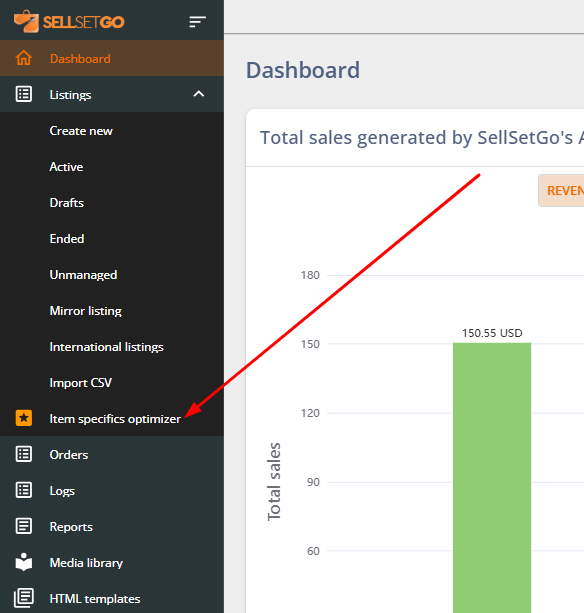
- Log in to SellSetGo
- Go to Listings
- Click Item specifics optimizer from the left-hand menu
This will open the Specs Optimizer tool.
Step 2: Select an eBay Category
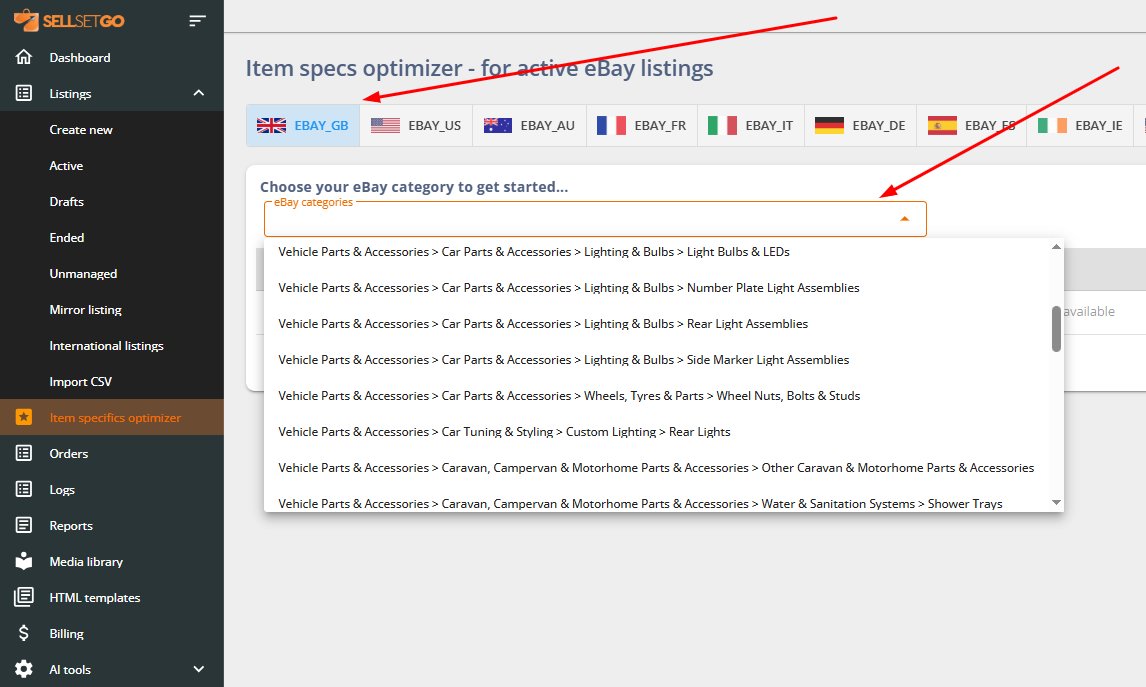
At the top of the page:
- Choose your eBay marketplace (e.g., eBay UK, US, AU, etc.)
- Select an eBay category
Once selected, SellSetGo automatically:
- Groups all listings mapped to that category
- Loads them into a spreadsheet-style grid
- Displays all available item specifics for that category
Since every listing in that category shares the same item specific fields, you can optimize everything in one place.
Step 3: Use the Spreadsheet View (Bird’s-Eye View)
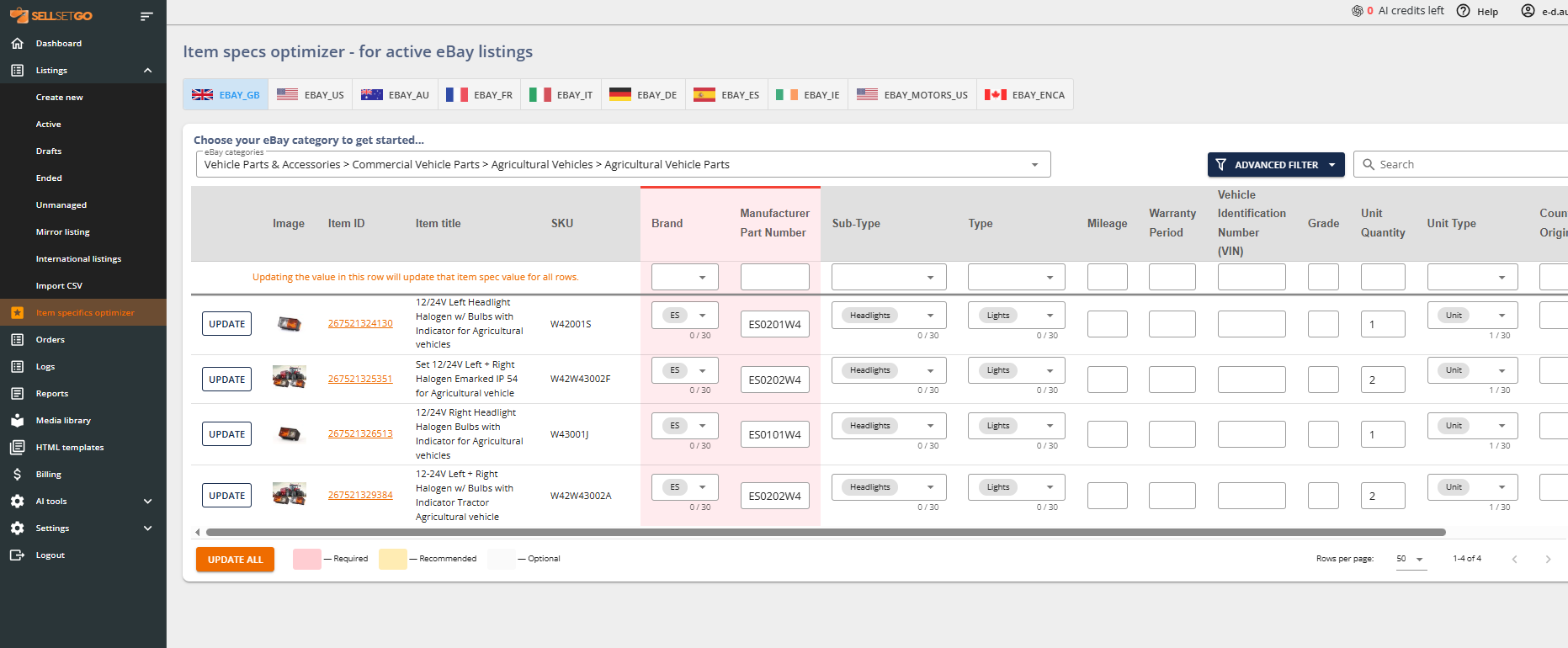
The Item Specs Optimizer gives you a full Excel-like grid view of:
- Image
- Item ID
- Title
- SKU
- All item specifics (Brand, Type, MPN, Warranty, Colour, etc.)
This bird’s-eye view makes it incredibly easy to:
- Spot missing item specifics
- Identify inconsistent values
- Standardize data across listings
Step 4: Bulk Update Using the Header Row (Mass Edit)
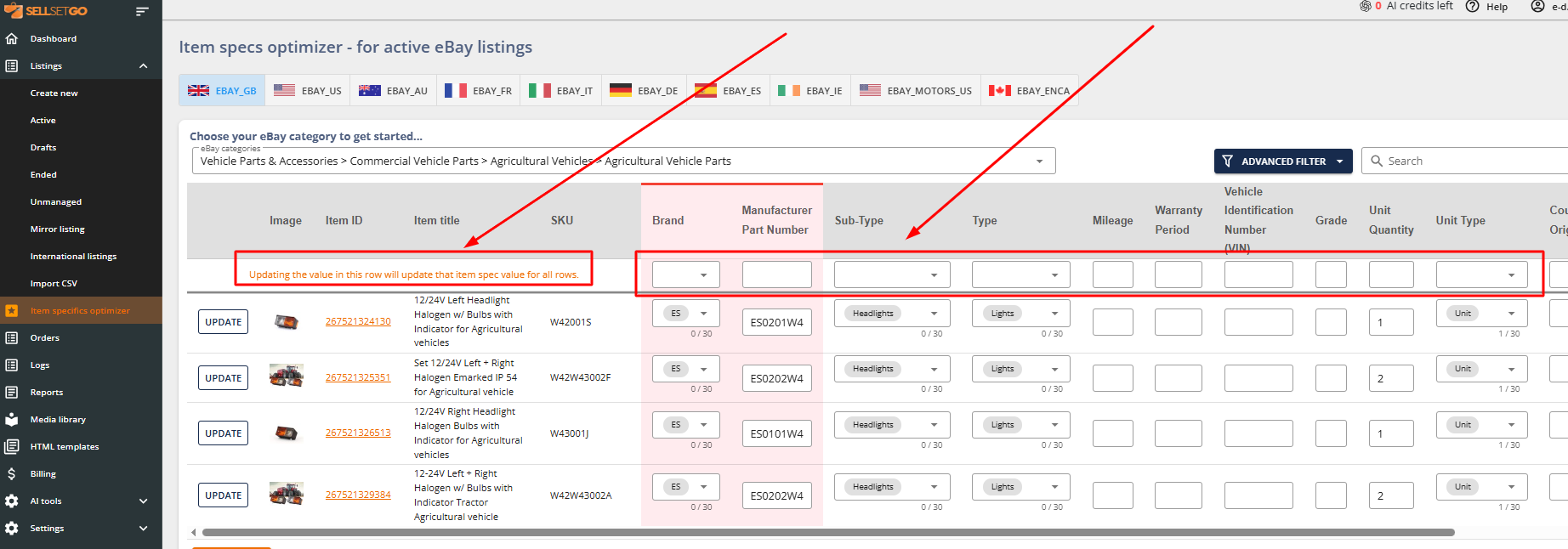
This is the most powerful feature.
At the top of each item specific column, you’ll see a header input field.
If you update the value in the header row, SellSetGo will:
Automatically apply that value to ALL listings in the grid.
Example:
- Enter “24/7 AUTO” in the Brand header
- Every listing in that category will update to that brand
This is perfect for:
- Standardizing Brand
- Fixing Warranty
- Updating Manufacturer Part Number format
- Filling missing required fields
- Cleaning up inconsistent values
Step 5: Override Individual Listings (Row-by-Row Editing)
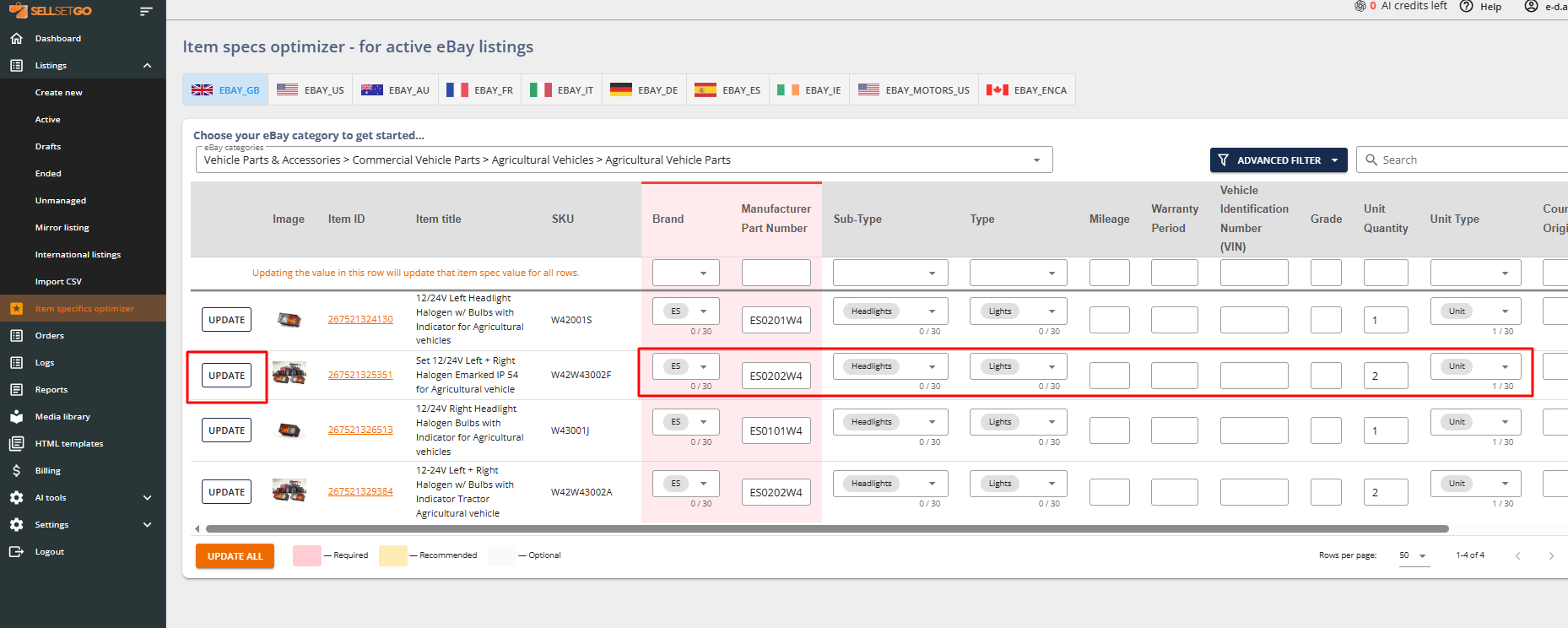
Need to make changes to just one listing?
Simply:
- Click inside the specific cell
- Choose or type the correct value
- Adjust only that listing
You have complete flexibility:
- Mass update everything
- Or fine-tune individual rows
Step 6: Save Your Changes
Once you’re done editing:
- Click Update All at the bottom to revise every listing
OR - Click Update next to individual rows
SellSetGo will automatically revise the listings on eBay.
No manual editing.
No opening listings one by one.
No copy-pasting inside eBay.
Why This Matters for eBay SEO
Optimized item specifics help:
- Improve search visibility
- Appear in filtered search results
- Increase conversion rates
- Reduce listing errors
- Meet eBay’s required/recommended fields
Some tools in the market focus only on item specifics editing.
With SellSetGo, this powerful bulk optimization feature is built directly into your full listing management system — so you can manage titles, pricing, templates, stock, and item specifics all in one place.
Final Thoughts
If you have hundreds or thousands of listings, manually updating item specifics inside eBay is simply not practical.
SellSetGo’s Item Specs Optimizer gives you:
- A bird’s-eye spreadsheet view
- Bulk header-row editing
- Individual row overrides
- One-click revision
It’s the fastest way to clean, standardize, and optimize your eBay item specifics at scale.